
Create AI Images From Text Prompts
Create thumbnails, covers and post stills from a text prompt in minutes. Choose the aspect ratio, quality mode, engine label and image count before rendering. ClipRush shows the credit cost first, and one-time credit packs never expire.
- Outputs image
- From 1 credits
- 9:16 · 1:1 · 16:9
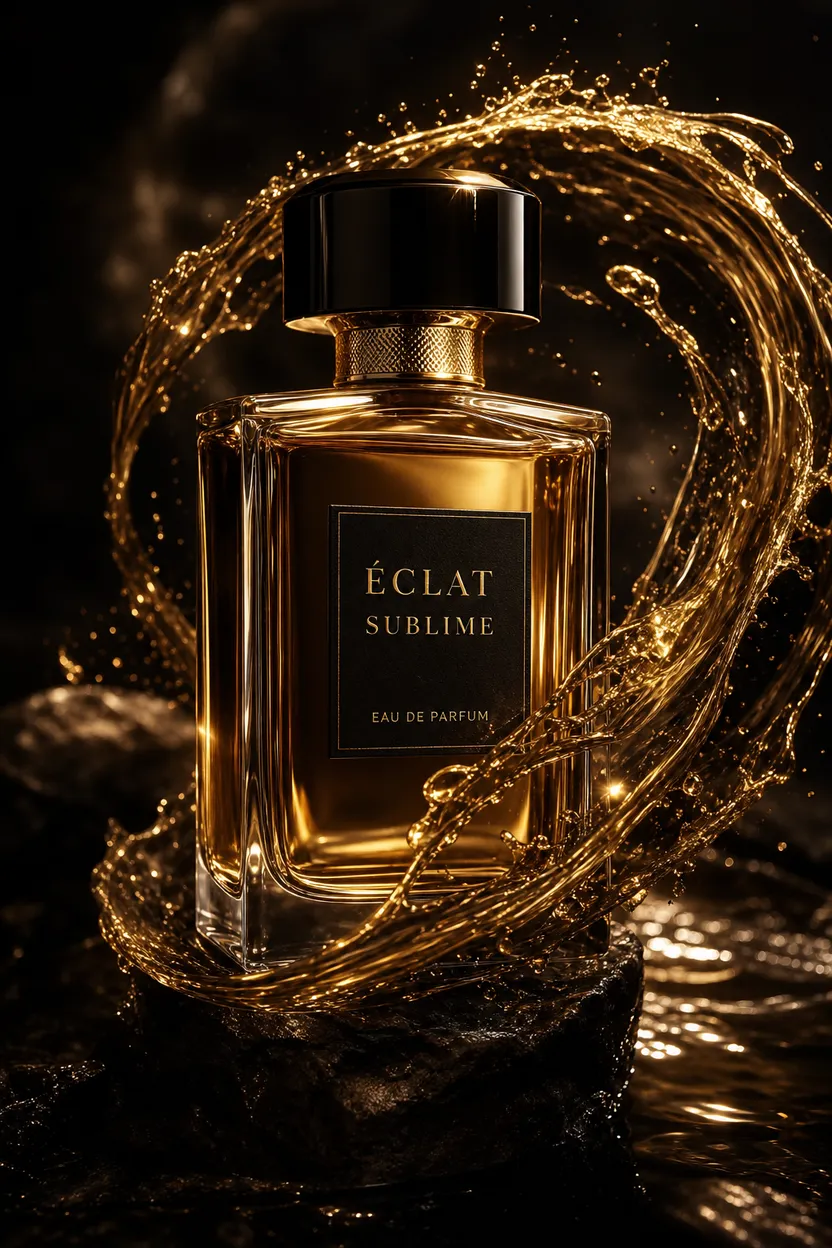
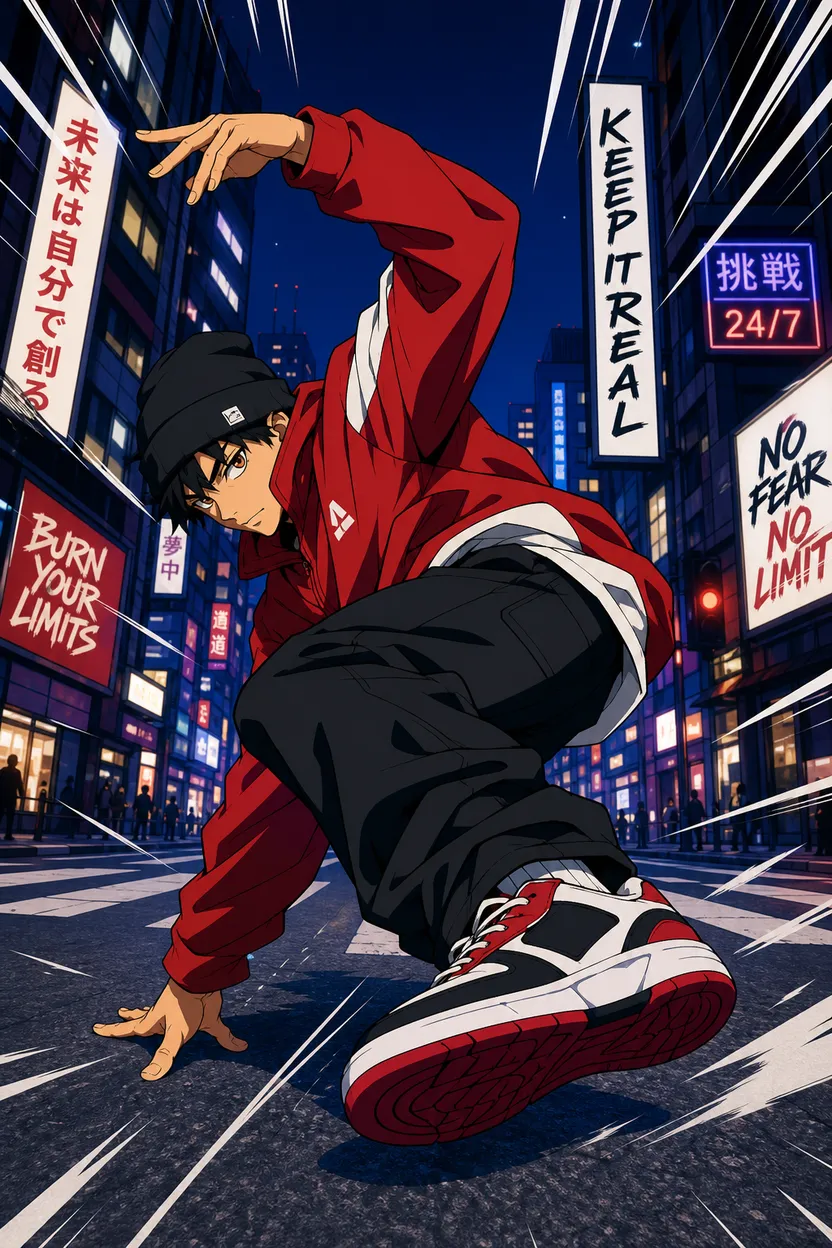
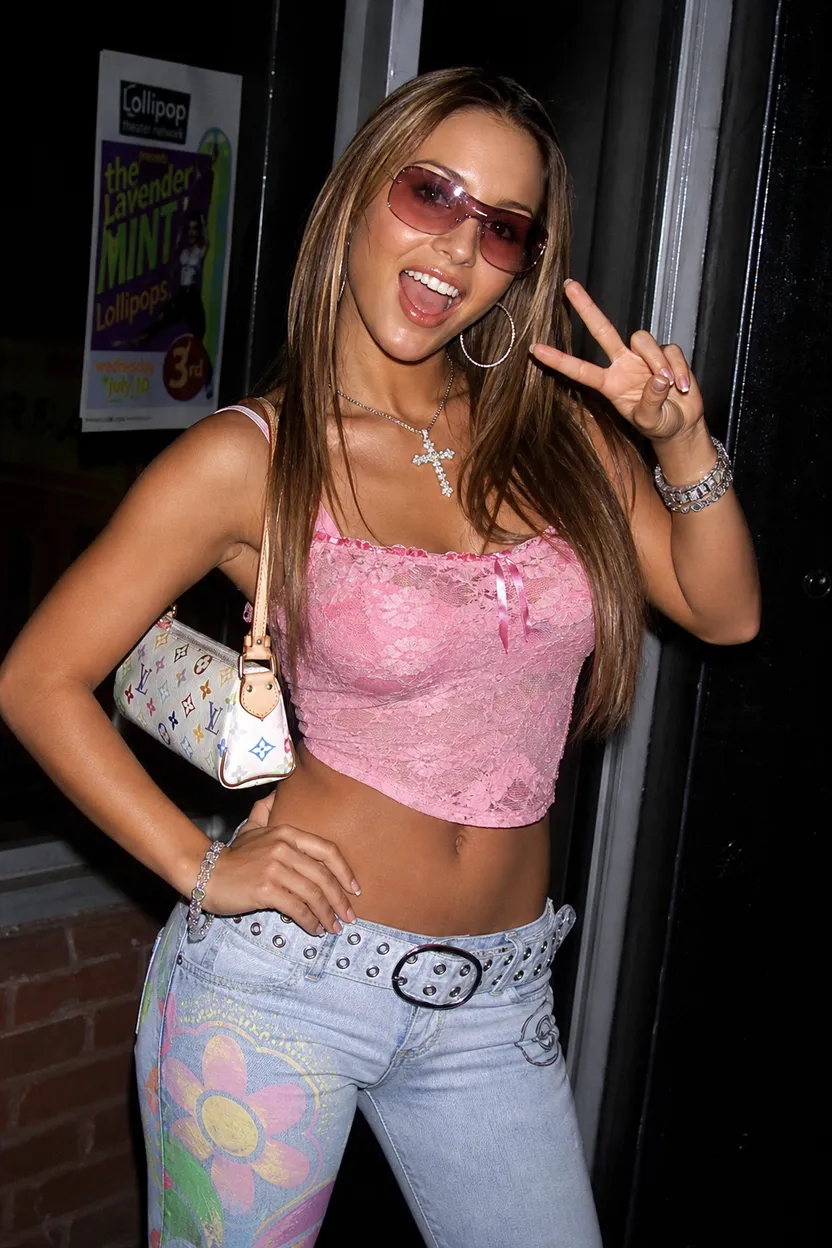

What you can do with Text → Image
Prompt to still image
Create a still image from a text prompt for thumbnails, covers or posts.
Any main ratio
Choose 9:16, 1:1 or 16:9 so your image fits vertical, square or widescreen placements.
Quality modes
Choose Fast or Quality mode based on whether you want a quicker draft or more refined still.
Create up to 4
Set the count from 1 to 4 images when you want multiple options from one prompt.
Content-safe models
ClipRush uses content-safe models only, with no NSFW outputs and no deepfakes.
How Text → Image works
1. Write your prompt
Describe the image you want to create, such as a thumbnail, cover or post still.
2. Choose options
Pick the aspect ratio, engine label, Fast or Quality mode, and a count from 1 to 4.
3. Render images
Review the exact credit cost, render your images, and export the stills you want to use.
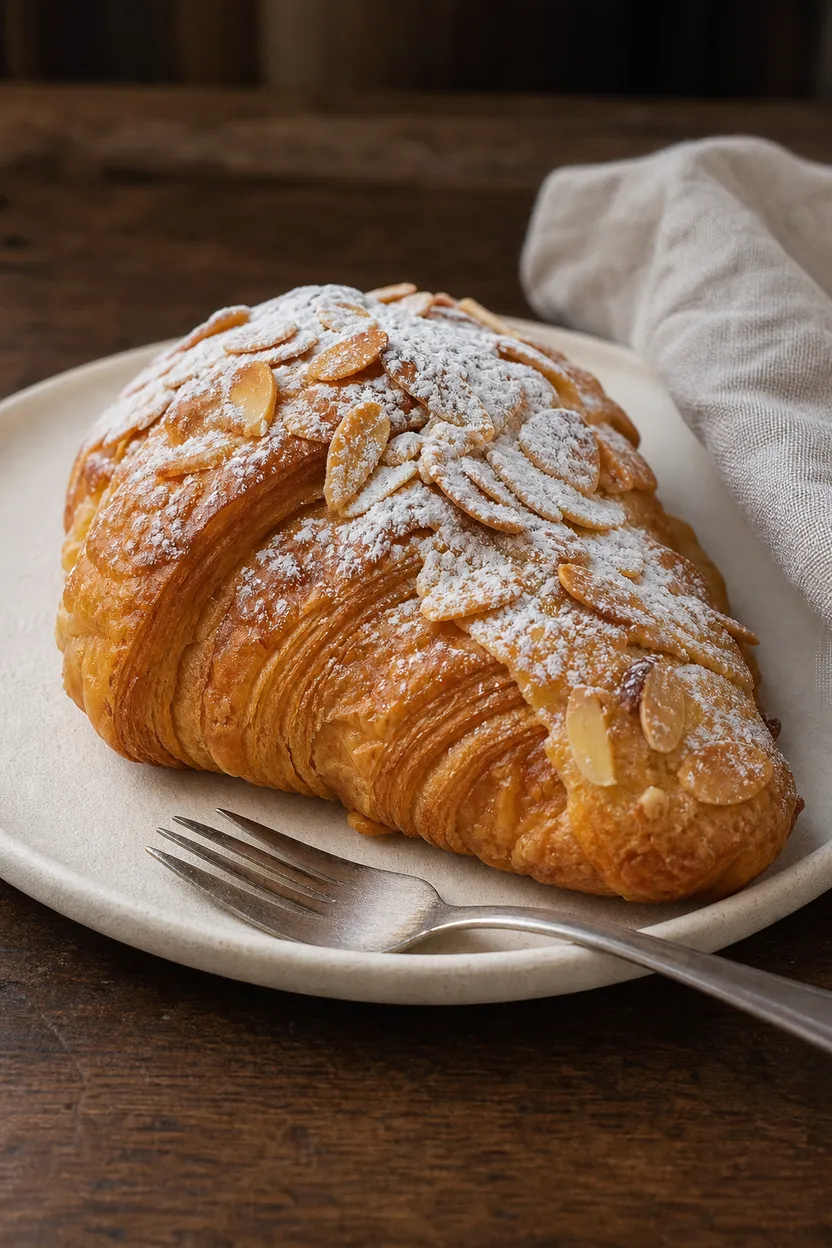
Almond Croissant Still
This example creates almond croissant stills for covers, thumbnails, or bakery posts with clear texture and warm light.
Start with a text prompt
Example prompt
“Handmade almond croissant on ivory plate with powdered sugar, almond flakes, silver fork, dark walnut table, warm bakery light.”

FAQs
The text to image tool makes still images from a written prompt. It is useful for thumbnails, covers and post stills.
Text to image starts at 1 credit per base render, and the exact cost is shown before you render. One balance works across all ClipRush tools.
You can choose 9:16, 1:1 or 16:9 and create 1 to 4 images from a prompt. You can also choose Fast or Quality mode.
Start by buying a one-time credit pack from $4.99, write your prompt and choose your options. Credits never expire.
Use text to image for stills like covers and thumbnails. Use text to video when you need a finished moving video clip.
Yes, you can set the count from 1 to 4 images before rendering. This helps compare different stills from the same prompt.