
Upscale and Enhance an Image
Increase resolution and detail on a still image without artifacts. Upload an image, choose Standard, Realism, Natural or Ultra mode, then select 4 MP to 32 MP. ClipRush shows the exact credit cost before render, and credits come in one-time packs.
- Outputs image
- From 1 credits
What you can do with Image Upscaler
Higher-res stills
Increase resolution and detail on any still image for cleaner reuse across posts, sites or ads.
Four upscale modes
Choose Standard, Realism, Natural or Ultra mode depending on the look you want.
Up to 32 MP
Select 4 MP, 8 MP, 16 MP, 24 MP or 32 MP before you render the enhanced image.
Creativity control
Use the creativity slider from 0 to 5 to control how much the enhancement can refine details.
Cost shown first
The exact credit cost appears before render, so you approve the spend before processing.
How Image Upscaler works
1. Upload an image
Add the still image you want to upscale and enhance.
2. Pick mode and resolution
Choose Standard, Realism, Natural or Ultra, then select 4 MP, 8 MP, 16 MP, 24 MP or 32 MP.
3. Set creativity and render
Adjust creativity from 0 to 5, review the credit cost, and render the upscaled image.
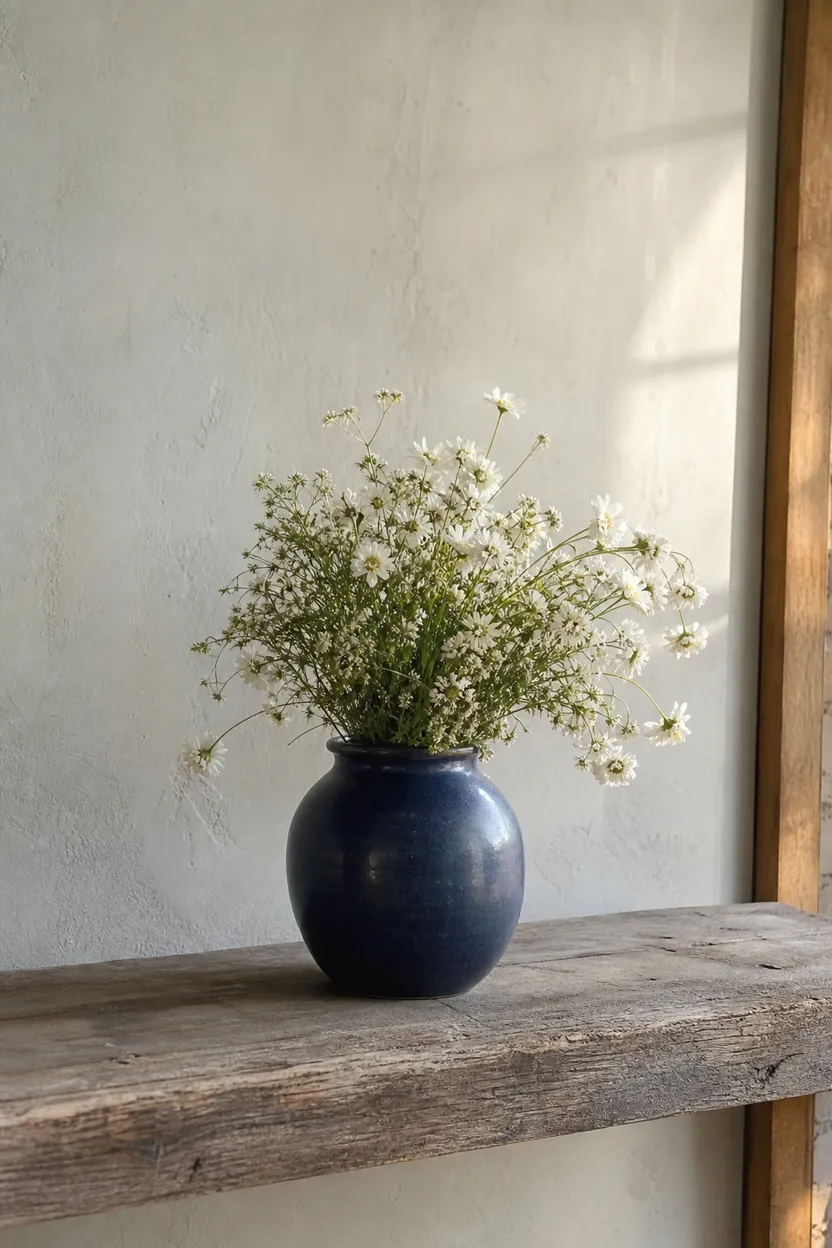
Navy Vase Upscale
This example cleans and sharpens a navy vase still, useful for making decor photos clearer before export.
Start with an image to upscale
FAQs
The image upscaler makes a higher-resolution, enhanced version of an existing still image. You upload an image and choose the mode and resolution.
Image upscaling starts at 1 credit per base render, and the exact cost is shown before you render. Your credit balance works across all tools.
You can choose 4 MP, 8 MP, 16 MP, 24 MP or 32 MP. You can also pick Standard, Realism, Natural or Ultra mode.
Start by buying a one-time credit pack from $4.99, upload your image and choose the upscale settings. Credits never expire.
Use image upscaler when you already have a still that needs more detail. Use text to image when you want to create a new still from a prompt.
Yes, the creativity slider runs from 0 to 5. Lower settings keep the result closer, while higher settings allow more detail refinement.